

4. Hub de raccourcis
Accès en un seul clic aux raccourcis clavier courants, organisés par application. Les étiquettes de raccourci s'adaptent automatiquement au OS cible (Ctrl+Z sur Windows/Linux, Cmd+Z sur macOS).
Profils intégrés
| Profil | Ce qu'il couvre |
|---|---|
| Par défaut | Raccourcis courants (Copier, Coller, Annuler, Enregistrer, etc.) — ne peuvent pas être supprimés |
| Blender 3D | Raccourcis de transformation, de sélection, d'affichage, de maillage, de mode et d'ombrage |
| KiCAD | Conception de PCB : couches, dessins, composants, propriétés |
| Nomad Sculpt | Outils de sculpture, pinceau, transformation, vue, masquage |
| Fusion 360 | CAO : navigation, croquis, modélisation, construction, assemblage |
| Photoshop | Outils, modifier, afficher les raccourcis |
| VS Code | Navigation, édition, code, affichage des raccourcis |
Utilisation des raccourcis
- Ouvrez le Shortcut Hub (ou le mode « Raccourcis » depuis la barre latérale sur Android)
- Appuyez sur n'importe quel profil pour l'ouvrir
- Dans un profil, parcourez les onglets de catégorie et appuyez sur n'importe quelle carte de raccourci pour l'exécuter.
- Les étiquettes de raccourci s'adaptent automatiquement au système d'exploitation cible
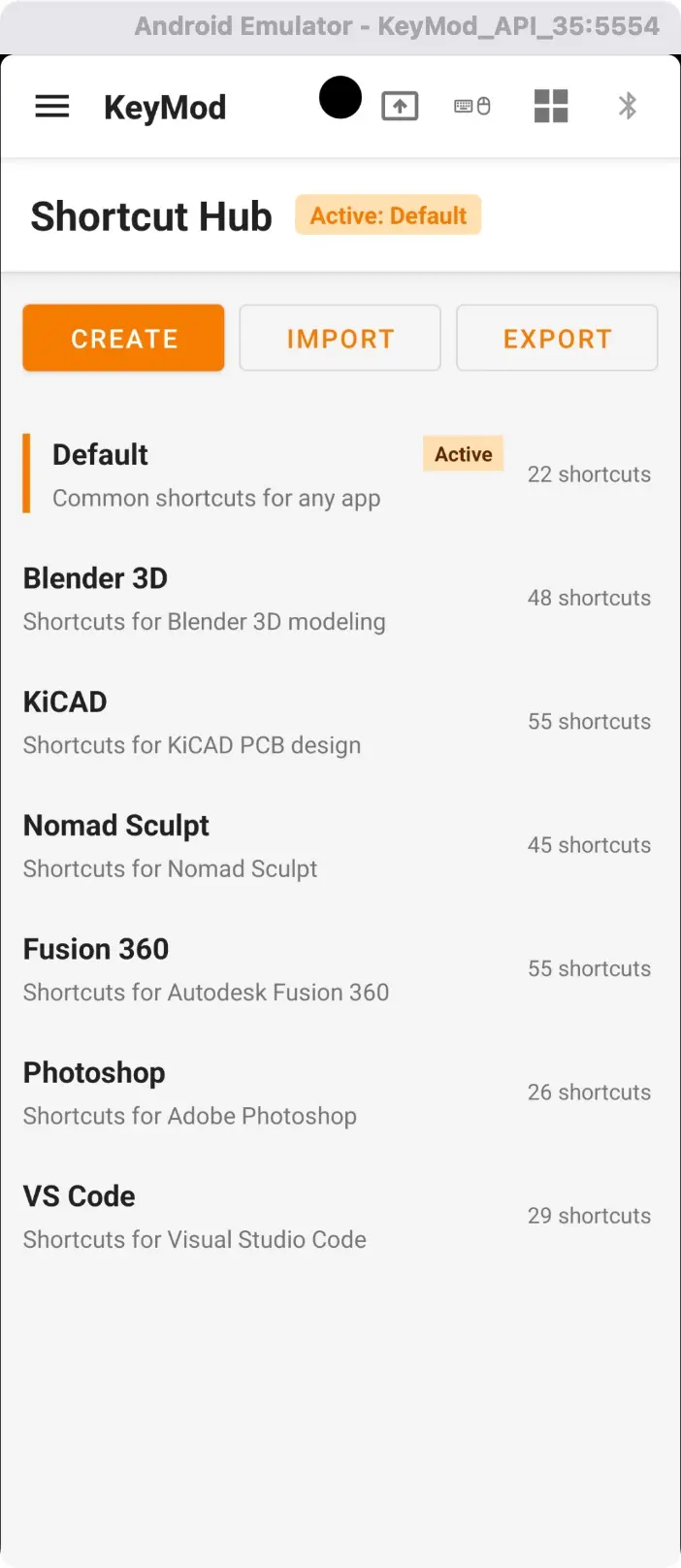
Shortcut Hub — profils et nombre de raccourcis. Appuyez sur n'importe quel profil pour parcourir les raccourcis par catégorie.
Création et gestion de profils
| Actions | Comment |
|---|---|
| Créer un profil | Appuyez sur "Créer un profil", entrez un nom |
| Modifier un raccourci | Appuyez longuement sur le raccourci → "Modifier" |
| Supprimer un raccourci | Appuyez longuement sur le raccourci → "Supprimer" |
| Ajouter aux favoris | Appui long → « Ajouter à mon » |
| Dupliquer un profil | Appuyez longuement sur un profil → "Dupliquer" |
| Exporter un profil | Appui long → "Exporter" — enregistre un fichier JSON |
| Importer un profil | Appuyez sur « Importer » — collez JSON ou recherchez un fichier |
Chaque profil dispose également d'une section Mes raccourcis pour les raccourcis personnels.
Prochaines étapes
- ← Target-Specific Keyboard — Dispositions du clavier et mappage du système d'exploitation cible
- Macros → — Séquences de touches automatisées