

6. Saisie vocale
Convertissez votre discours en frappes envoyées à l'ordinateur cible : saisie mains libres et accessibilité.
Comment ça marche
- Appuyez sur le microphone button
- Dites ce que vous voulez taper
- Votre discours est converti en texte
- Le texte est envoyé sous forme de frappes au clavier à l'ordinateur cible
Moteurs STT
| Moteur | Comment ça marche | Configuration |
|---|---|---|
| Reconnaissance du système | Utilise la reconnaissance vocale intégrée du Android | Nécessite Google Saisie vocale |
| Whisper | Transcription IA sur appareil ou dans le cloud | Définissez la clé API dans Paramètres > Saisie vocale |
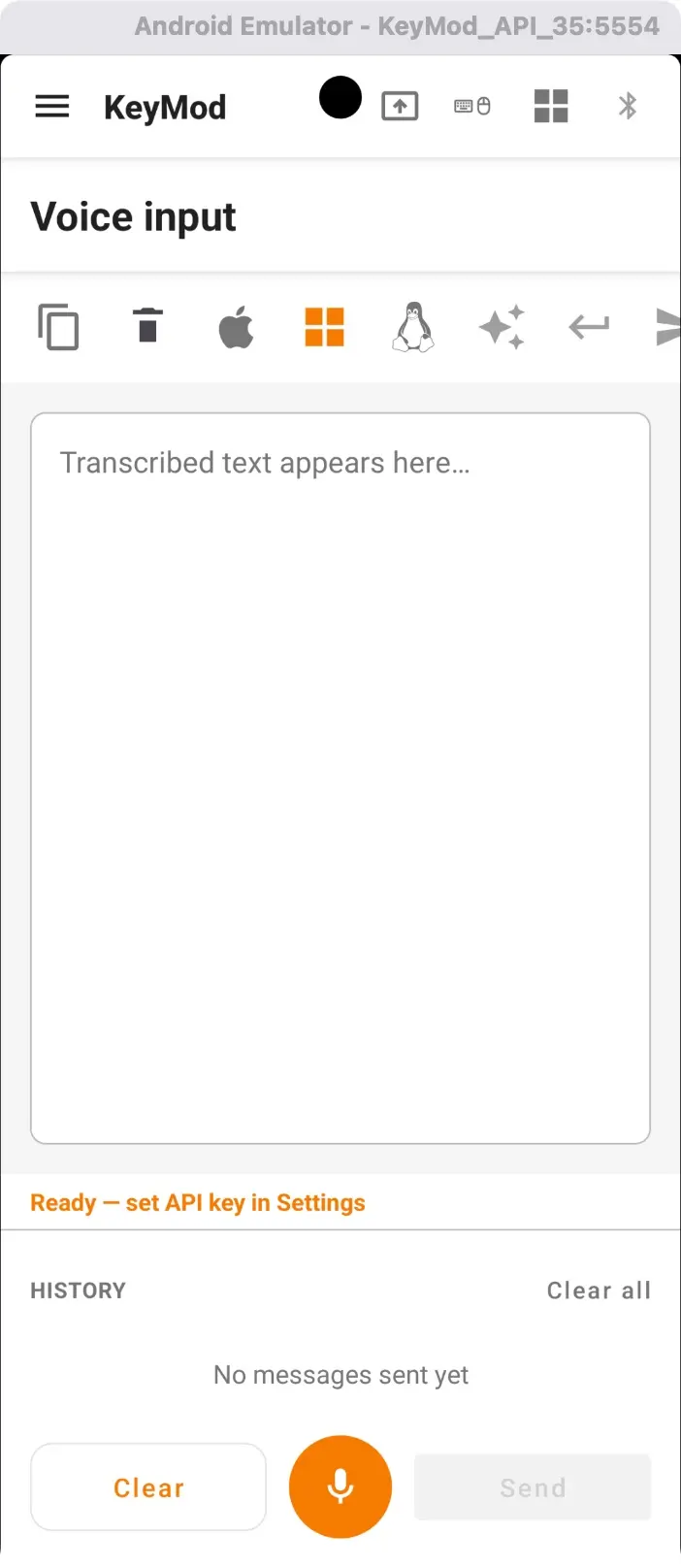
Saisie vocale — zone de transcription, cibles, historique et micro. Configurez la clé API dans Paramètres > Saisie vocale.
Détection du silence et pause automatique
Les deux moteurs disposent d'une détection automatique du silence qui met en pause l'enregistrement lorsque vous arrêtez de parler (délai d'expiration du silence de 2,0 secondes par défaut). Activez/désactivez la pause automatique dans la vue Saisie vocale.
Dépannage de la détection de silence
| Symptôme | Solutions |
|---|---|
| L'enregistrement continue lorsque vous ne parlez pas | Cochez la case Pause automatique en cas de silence. Réduisez le bruit de fond. Parlez clairement et près du microphone. |
| L'enregistrement s'arrête immédiatement | Parlez plus fort ou réduisez le délai de détection du silence. |
Mini-barre d'outils (Android)
| Button | Ce qu'il fait |
|---|---|
| Copie | Copier le texte transcrit dans le presse-papiers |
| Envoi automatique | Envoyer automatiquement le texte après la transcription |
| Retour de ligne automatique | Ajoutez une touche Entrée après l'envoi de |
| AI Affiner | Envoyer le texte transcrit à l'IA pour amélioration |
Le texte vocal n'est pas envoyé
Vérifiez l'état de la connexion. Le "Envoyer" button est désactivé lorsqu'il n'est pas connecté.
Prochaines étapes
- ← Macros — Séquences de touches automatisées
- AI Integration → — Affinement du texte et assistant de commande assistés par l'IA