

2. Clavier et souris
Le mode Clavier et Souris est le mode le plus fréquemment utilisé. Il fournit un clavier virtuel et touchpad pour contrôler l'ordinateur cible depuis votre téléphone.
Deux niveaux : Basic et Pro
KeyMod propose deux expériences de clavier :
| Niveau | Nom du mode | Idéal pour |
|---|---|---|
| Basique | Clavier et souris | Saisie rapide avec un clavier plein écran, sans distraction d'en-tête |
| Pro | Clavier et souris Pro | Disposition entièrement composite avec bandes de raccourcis, clavier divisé et riche IME |
Clavier et souris (de base)
Le niveau Basic vous offre un clavier plein écran dédié sans l'en-tête supérieur de l'application. Toutes les commandes se trouvent sur la rangée supérieure du clavier :
- Menu, changement de mode (Touchpad / Composer & Envoyer / Pavé numérique)
- Sélecteur de système d'exploitation cible
- Statut de connexion
Fonctionnalités uniques à Basic :
- Répétition par pression longue : maintenez n'importe quelle touche de caractère ou de fonction pour la répétition automatique (délai d'environ 400 ms, répétition d'environ 50 ms)
- Aperçu des touches : une bulle flottante affiche l'étiquette effective au-dessus de la touche lorsque vous appuyez dessus
- Retour haptique et surfaces clés sensibles au thème
- Pavé numérique portrait et paysage : grille 5x8 (portrait) ou grille 8x5 (paysage)
- Mode de rédaction IME : saisissez un texte long, envoyez-le sous forme de frappes HID propres en ASCII uniquement
Basic n'inclut pas les lignes de bandes Shortcut Hub. Pour les profils de bande, passez à Keyboard & Mouse Pro.
Clavier et souris Pro
Pro est l'expérience composite complète : lignes de bandes de raccourcis Hub, dispositions de clavier divisées et flux de travail IME complet. C’est ce qu’attendent les utilisateurs expérimentés.
La mise en page
Mode portrait :
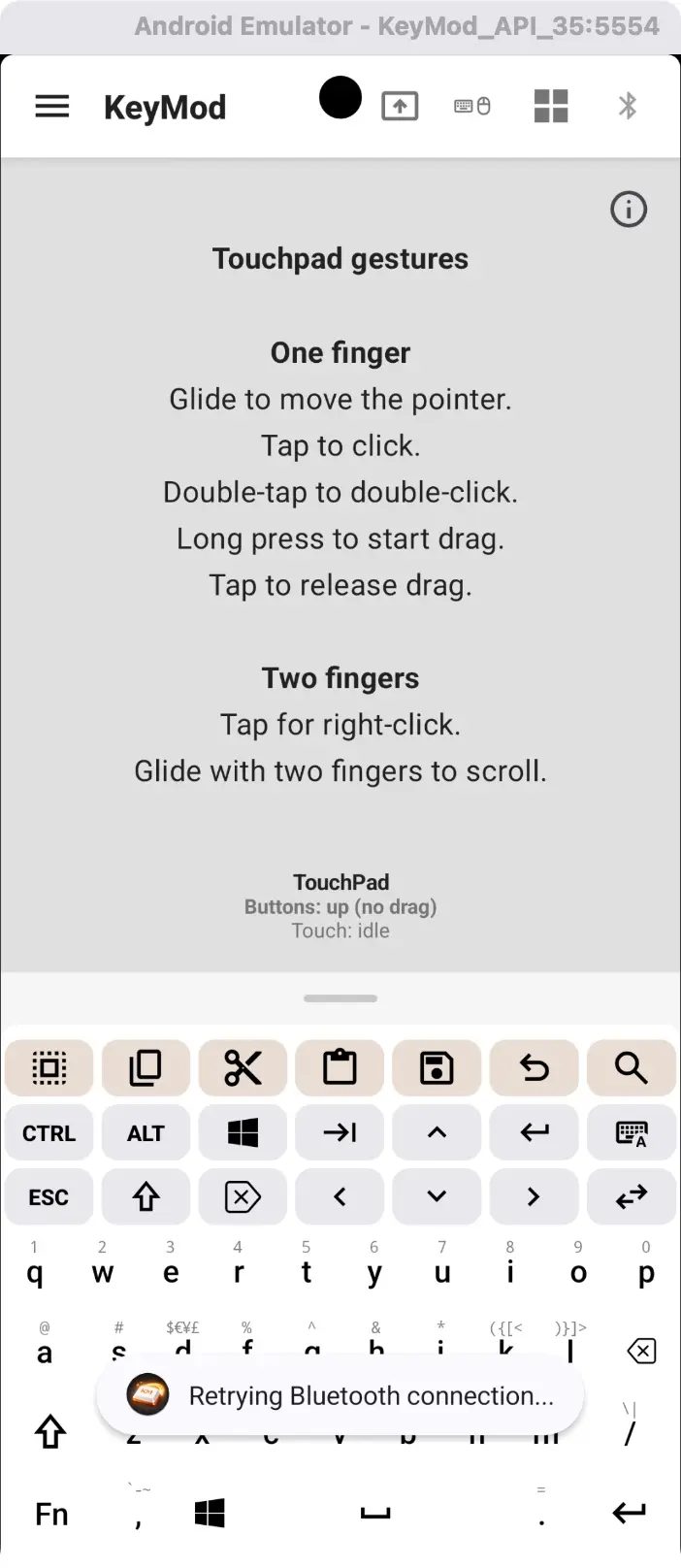
Portrait — touchpad gestes + disposition du clavier. Faites glisser votre doigt vers le haut/bas sur touchpad pour faire défiler, faites glisser pour déplacer le curseur.
Paysage — clavier divisé + touchpad :
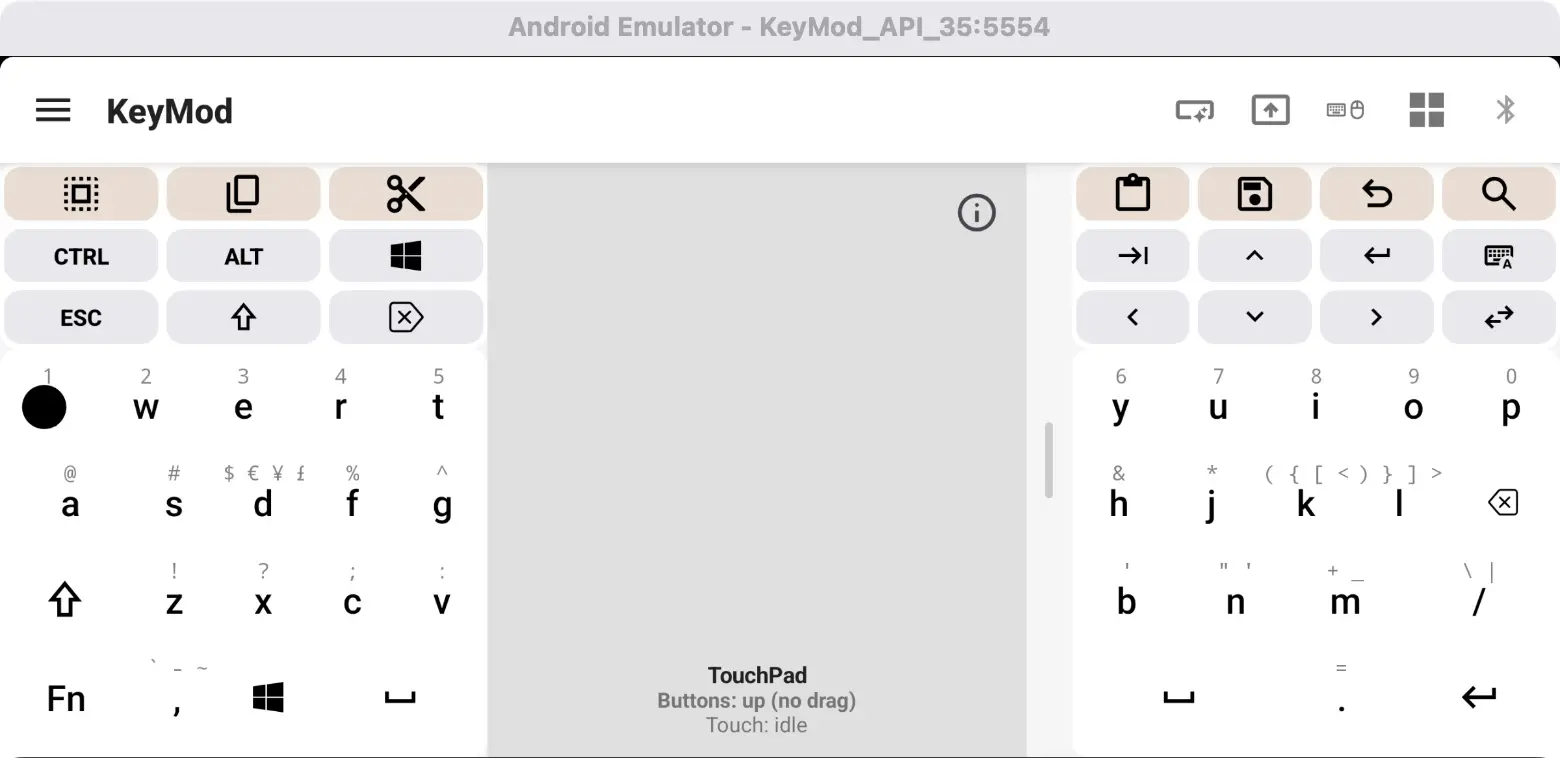
Paysage — divisez les moitiés du clavier avec touchpad sur le côté gauche pour une saisie confortable avec deux pouces.
Paysage – ligne de macro + profils :
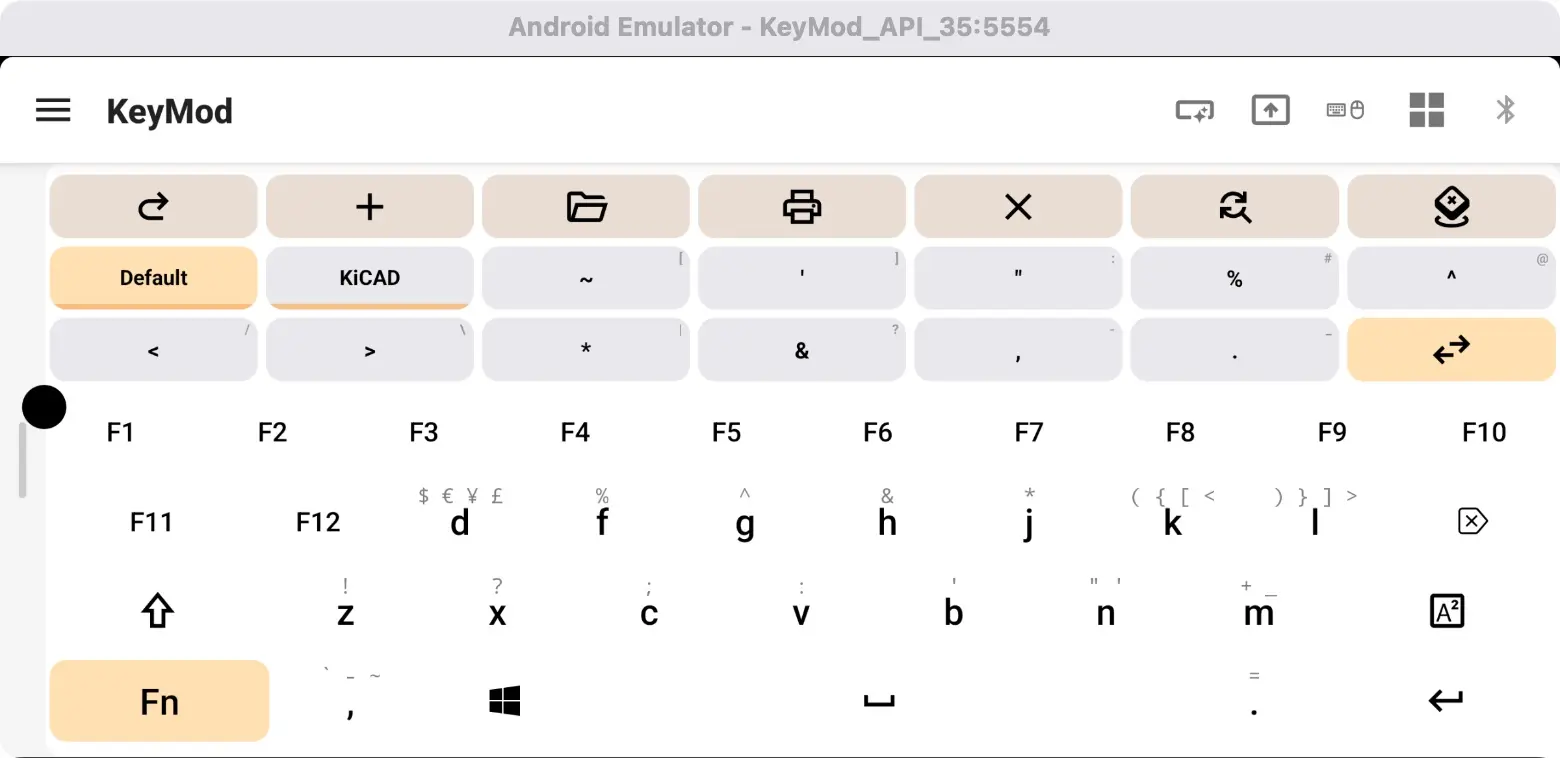
Paysage — bande de macros au-dessus du clavier et du sélecteur de profil (par exemple, par défaut, KiCAD).
Modes d'affichage (Android)
Appuyez sur la poignée à bascule (séparateur en forme de pilule entre le clavier et le touchpad) pour parcourir les modes d'affichage :
| Mode | Ce que vous voyez |
|---|---|
| Les deux (par défaut) | Clavier + touchpad ensemble |
| Clavier uniquement | Clavier pleine largeur, touchpad caché |
| Touchpad uniquement (portrait) | Touchpad prend le plein écran |
| Partager (paysage) | Deux demi-claviers avec touchpad à gauche |
Comment utiliser le clavier
| Actions | Comment |
|---|---|
| Tapez une lettre | Appuyez dessus |
| Lettre majuscule | Appuyez d'abord sur Shift, puis sur la lettre |
| Tapez un chiffre ou un symbole | Appuyez sur ?123 pour passer à la disposition des chiffres/symboles |
| Tapez Ctrl+C (copie) | Appuyez sur Ctrl (il est mis en surbrillance), puis appuyez sur C |
| Tapez Win+R (boîte de dialogue Exécuter) | Appuyez sur Win, puis sur R |
| Accès F1-F12 | Appuyez sur Fn, la rangée de lettres devient alors des touches de fonction |
| Multi-modificateur (Ctrl+Shift+C) | Appuyez sur Ctrl, puis sur Shift (tous deux maintenus enfoncés), puis sur C |
Comportement du modificateur
Maintenez enfoncé et appuyez : Appuyez sur un modificateur pour le maintenir (il est mis en surbrillance), puis appuyez sur n'importe quelle touche. Le modificateur se libère automatiquement après une pression sur une touche. Pour les combos multi-modificateurs, appuyez sur chaque modificateur dans l'ordre avant d'appuyer sur la touche finale.
Alternatives à pression longue
De nombreuses touches alphabétiques comportent des symboles cachés auxquels vous pouvez accéder en appuyant longuement :``` Long-press "d" → shows: $ € ¥ £ Long-press "k" → shows: ( { [ < Long-press "/" → shows: \ | Long-press "m" → shows: + _ Appuyez et maintenez jusqu'à ce qu'une fenêtre contextuelle apparaisse, puis faites glisser votre doigt vers le symbole souhaité et relâchez.
Fn Couche clé
Appuyez sur la touche Fn dans la ligne des modificateurs. Les touches alphabétiques deviennent temporairement F1 à F12 :
- Q = F1, W = F2, E = F3, R = F4, T = F5, Y = F6
- U = F7, I = F8, O = F9, P = F10 -A = F11, S = F12
Boutons d'action rapide
Des boutons de raccourci courants sont disponibles pour un accès rapide. L'application utilise le paramètre Target OS pour déterminer le modificateur correct :
| Actions | macOS | Windows/Linux |
|---|---|---|
| Copier | Cmd+C | Ctrl+C |
| Coller | Cmd+V | Ctrl+V |
| Couper | Cmd+X | Ctrl+X |
| Annuler | Cmd+Z | Ctrl+Z |
| Sélectionner tout | Cmd+A | Ctrl+A |
| Refaire | Cmd+Y | Ctrl+Y |
| Trouver | Cmd+F | Ctrl+F |
| Enregistrer | Cmd+S | Ctrl+S |
| Nouvel onglet | Cmd+T | Ctrl+T |
| Fermer l'onglet | Cmd+W | Ctrl+W |
| Onglet suivant | Cmd+Onglet | Ctrl+Onglet |
| Écran de verrouillage | Cmd+L | Win+L |
| Afficher le bureau | Cmd+D | Win+J |
| Alt+F4 | — | Alt+F4 |
| Ctrl+Alt+Suppr | — | Ctrl+Alt+Suppr |
TouchPad
Gestes
| Geste | Actions |
|---|---|
| Appuyez sur | Clic gauche |
| Toucher à deux doigts | Clic droit |
| Faites glisser | Déplacer le curseur |
| Glisser vers le haut/bas avec deux doigts | Défilement (défilement naturel) |
| Appui long | Mode glisser (verrouille le curseur pour le glisser) |
| Appuyez deux fois | Double-cliquez |
TouchPad Suppléments
- Pop-out touchpad — Appuyez sur l'icône d'information touchpad (?) pour ouvrir un touchpad flottant qui reste au-dessus des autres modes.
- TouchPad Superposition d'aide (Android) — Appuyez sur l'icône ? pour afficher un guide de référence des gestes en plein écran
- Retour haptique — Vous ressentirez une vibration lors des clics et des bascules en faisant glisser
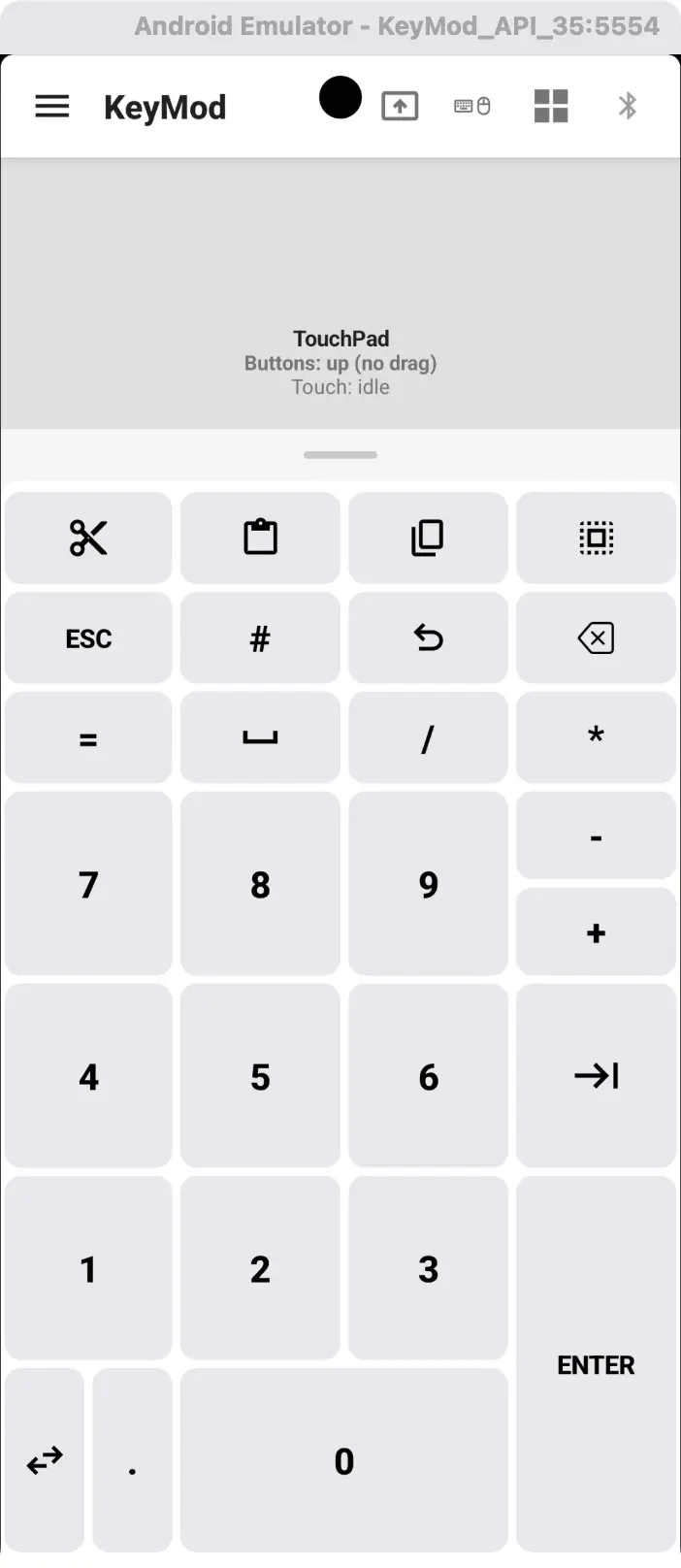
Portrait — touchpad avec grille de clavier à droite pour une saisie rapide des chiffres/symboles.
Saisie de texte (IME Mode de rédaction — Android)
En mode clavier et souris portrait, vous pouvez passer au mode de capture IME : un éditeur de texte situé sous le clavier dans lequel vous composez un texte plus long avant de l'envoyer sous forme de frappes HID à l'ordinateur cible.
- Appuyez sur l'icône clavier/IME bascule dans la rangée de modificateurs pour basculer entre l'envoi direct de touches et le mode de rédaction de texte.
- En mode composition, vous obtenez un éditeur de texte avec une barre d'outils pour copier, coller, effacer, annuler et envoyer
- Réduire/développer la zone de composition avec l'icône en forme de flèche
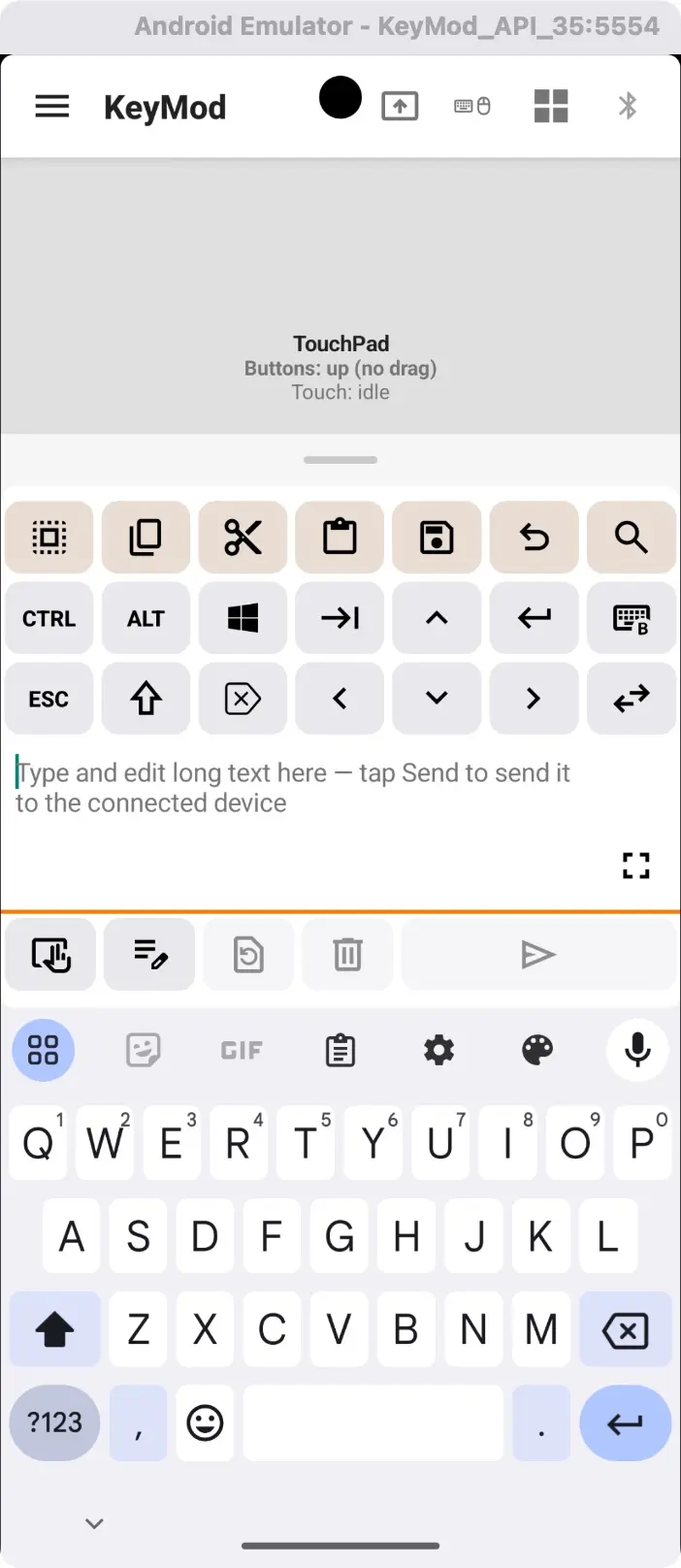
IME mode composition : saisissez ou collez un texte long, puis appuyez sur Envoyer pour le transmettre sous forme de HID frappes au clavier à la cible.
Système d'exploitation cible
Définissez le système d'exploitation cible pour qu'il corresponde aux conventions clés de l'ordinateur cible. Cela affecte les étiquettes de raccourci, les méthodes de saisie Unicode et le mappage des touches de modification. Modifiez-le en appuyant sur l'icône du système d'exploitation dans la barre d'en-tête.
Bande de raccourci (Android, Paysage)
En mode paysage, une bande de raccourcis déroulante apparaît au-dessus des deux moitiés du clavier, offrant un accès rapide aux raccourcis courants (Copier, Coller, Couper, Enregistrer, Annuler, Tout sélectionner).
Prochaines étapes
- Target-Specific Keyboard → — Dispositions du clavier et mappage du système d'exploitation cible
- Troubleshooting → — Problèmes courants et solutions