

2. 키보드 및 마우스
키보드 및 마우스 모드는 가장 자주 사용되는 모드입니다. 휴대폰에서 대상 컴퓨터를 제어할 수 있는 가상 키보드와 touchpad를 제공합니다.
두 가지 계층: Basic 및 Pro
KeyMod은 두 가지 키보드 경험을 제공합니다:
| 계층 | 모드 이름 | |
|---|---|---|
| 기본 | 키보드 및 마우스 | 전체 화면 키보드로 빠른 타이핑, 헤더 방해 없음 |
| 프로 | 키보드 및 마우스 프로 | 바로가기 허브 스트립, 분할 키보드 및 풍부한 IME |
키보드 및 마우스(기본)
기본 계층은 앱의 상단 헤더 없이 전용 전체 화면 키보드를 제공합니다. 모든 컨트롤은 키보드 자체의 맨 윗줄에 있습니다.
- 메뉴, 모드 전환(Touchpad / 작성 및 보내기 / 숫자패드)
- 대상 OS 선택기
- 연결 상태
Basic의 고유한 기능:
- 길게 누르기 반복: 자동 반복을 위해 문자 또는 기능 키를 누르고 있습니다(~400ms 지연, ~50ms 반복).
- 키 미리보기: 눌렀을 때 키 위에 떠다니는 풍선에 유효한 라벨이 표시됩니다.
- 햅틱 피드백 및 테마 인식 키 표면
- 세로 및 가로 숫자 패드: 5x8 그리드(세로) 또는 8x5 그리드(가로)
- IME 작성 모드: 긴 텍스트를 입력하고 깨끗한 ASCII 전용 HID 키 입력으로 보냅니다.
기본에는 단축 허브 스트립 행이 포함되지 않습니다. 스트립 프로파일의 경우 Keyboard & Mouse Pro로 전환하세요.
키보드 및 마우스 프로
Pro는 바로가기 허브 스트립 행, 분할 키보드 레이아웃 및 완전한 IME 워크플로를 갖춘 완전한 복합 환경입니다. 이것이 고급 사용자가 기대하는 것입니다.
레이아웃
세로 모드:
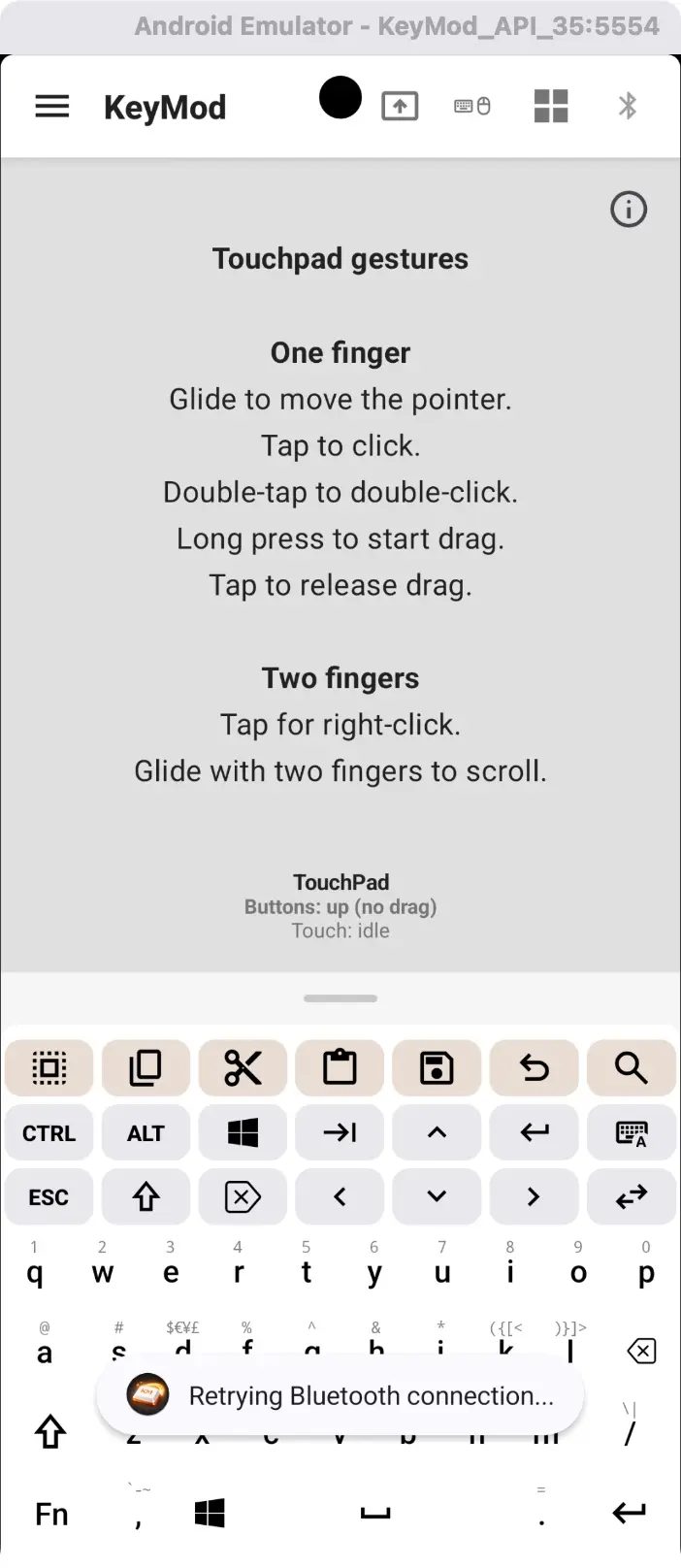
세로 — touchpad 제스처 + 키보드 레이아웃. 스크롤하려면 touchpad를 위/아래로 스와이프하고, 커서를 이동하려면 드래그하세요.
가로 모드 — 분할 키보드 + touchpad:
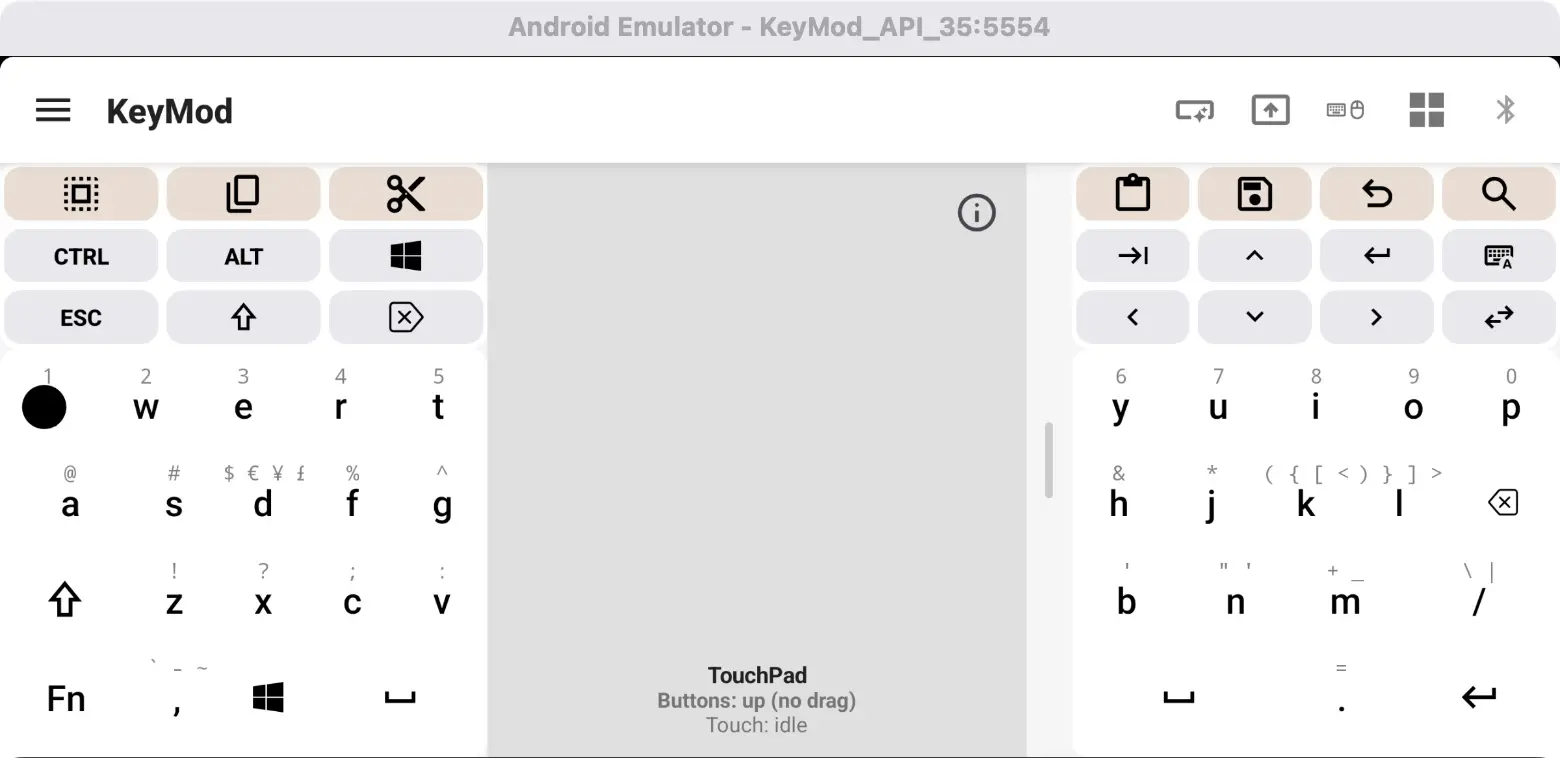
가로 방향 — 두 개의 엄지손가락으로 편안하게 타이핑할 수 있도록 왼쪽에 touchpad가 있는 분할 키보드 반쪽.
가로 — 매크로 행 + 프로필:
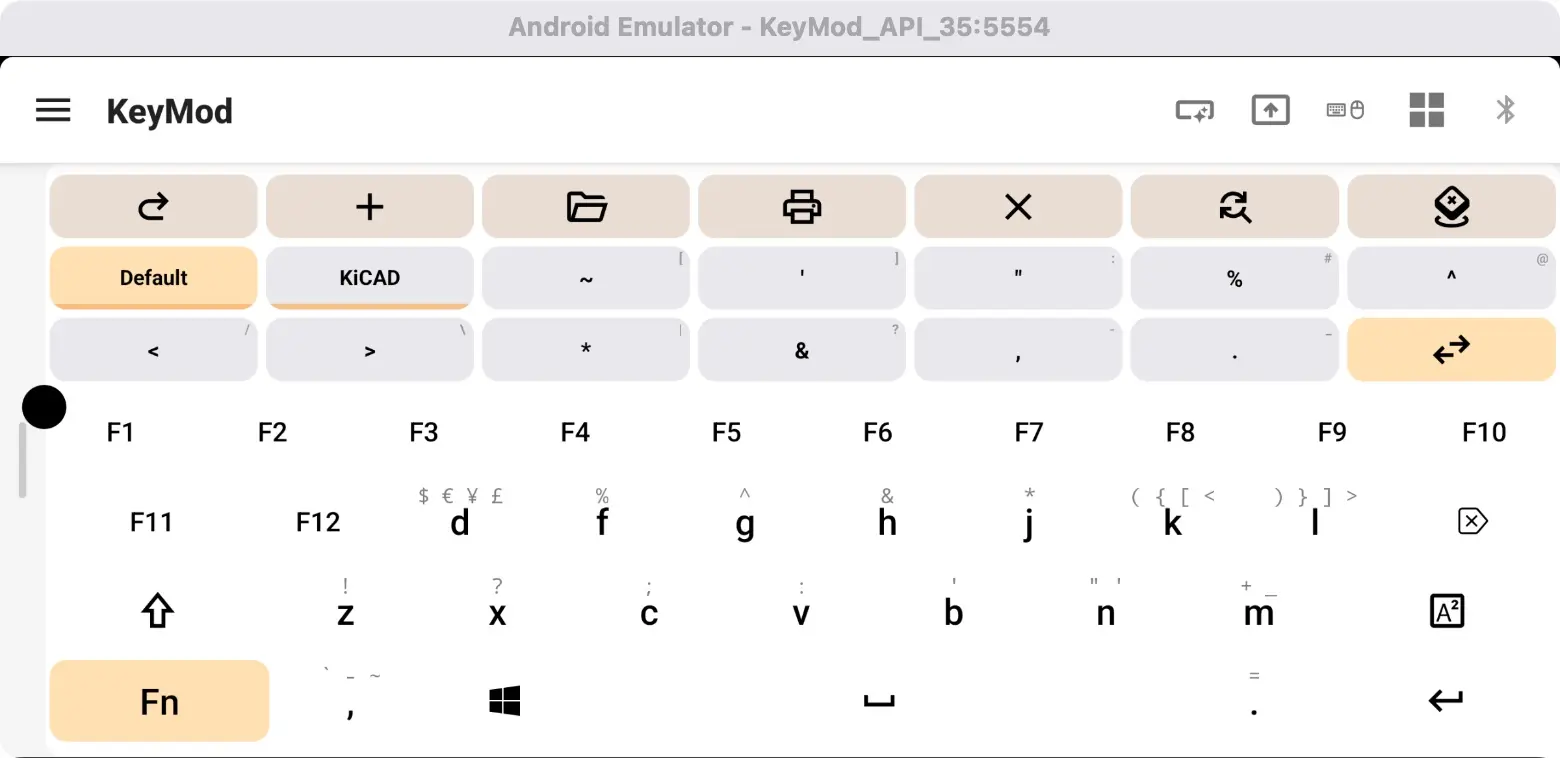
가로 — 키보드 및 프로필 선택기 위의 매크로 스트립(예: 기본값, KiCAD).
디스플레이 모드 (Android)
토글 핸들(키보드와 touchpad 사이의 알약 모양 구분선)을 탭하여 디스플레이 모드를 전환합니다.
| 모드 | 당신이 보는 것 |
|---|---|
| 둘 다(기본값) | 키보드 + touchpad 함께 |
| 키보드만 | 전자 키보드, touchpad 숨김 |
| Touchpad만 (세로) | Touchpad는 전체 화면을 사용합니다 |
| 분할(가로) | 왼쪽에 touchpad가 있는 하프 키보드 2개 |
키보드 사용 방법
| 액션 | 어떻게 |
|---|---|
| 편지를 입력하세요 | 탭하세요 |
| 대문자 | Shift를 먼저 탭한 다음 문자 |
| 숫자 또는 기호 입력 | ?123을 탭하여 숫자/기호 레이아웃으로 전환 |
| 유형 Ctrl+C(복사) | Ctrl(강조 표시)를 탭한 다음 C |
| Win+R을 입력합니다(실행 대화 상자) | Win를 탭한 다음 R |
| F1~F12에 액세스 | Fn를 탭하면 문자 열이 기능 키 |
| 다중 수식어(Ctrl+Shift+C) | Ctrl를 누른 다음 Shift(둘 다 누르고 있음)를 누른 다음 C |
수정자 동작
길게 탭하기: 수정자를 탭하여 누른 다음(강조 표시됨) 아무 키나 탭합니다. 수정자는 키를 한 번 누른 후 자동으로 해제됩니다. 다중 수정자 콤보의 경우 마지막 키를 누르기 전에 각 수정자를 순서대로 누릅니다.
길게 누르기 대체
많은 문자 키에는 길게 눌러 액세스할 수 있는 숨겨진 기호가 있습니다.``` Long-press "d" → shows: $ € ¥ £ Long-press "k" → shows: ( { [ < Long-press "/" → shows: \ | Long-press "m" → shows: + _ 팝업이 나타날 때까지 길게 누른 다음 원하는 기호 쪽으로 손가락을 민 다음 놓습니다.
Fn 키 레이어
수정자 행에서 Fn 키를 탭하세요. 문자 키는 일시적으로 F1 ~ F12가 됩니다.
- Q = F1, W = F2, E = F3, R = F4, T = F5, Y = F6
- U = F7, I = F8, O = F9, P = F10
- A = F11, S = F12
빠른 작업 버튼
빠른 액세스를 위해 공통 바로가기 버튼을 사용할 수 있습니다. 앱은 대상 OS 설정을 사용하여 올바른 수정자를 결정합니다.
| 액션 | macOS | Windows/Linux |
|---|---|---|
| 복사 | Cmd+C | Ctrl+C |
| 붙여넣기 | Cmd+V | Ctrl+V |
| 컷 | Cmd+X | Ctrl+X |
| 실행 취소 | Cmd+Z | Ctrl+Z |
| 모두 선택 | Cmd+A | Ctrl+A |
| 다시 실행 | Cmd+Y | Ctrl+Y |
| 찾기 | Cmd+F | Ctrl+F |
| 저장 | Cmd+S | Ctrl+S |
| 새 탭 | Cmd+T | Ctrl+T |
| 탭 닫기 | Cmd+W | Ctrl+W |
| 다음 탭 | Cmd+Tab | Ctrl+Tab |
| 잠금 화면 | Cmd+L | Win+L |
| 데스크탑 표시 | Cmd+D | Win+D |
| Alt+F4 | — | Alt+F4 |
| Ctrl+Alt+델 | — | Ctrl+Alt+Del |
TouchPad
제스처
| 제스처 | 액션 |
|---|---|
| 탭 | 왼쪽 클릭 |
| 두 손가락 탭 | 마우스 오른쪽 버튼을 클릭 |
| 드래그 | 커서 이동 |
| 두 손가락으로 위/아래로 스와이프 | 스크롤(자연스크롤) |
| 길게 누르기 | 드래그 모드(드래그할 때 커서 잠금) |
| 두 번 탭 | 더블클릭 |
TouchPad 추가사항
- 팝아웃 touchpad — touchpad 정보 아이콘(?)을 탭하여 다른 모드 위에 있는 플로팅 touchpad을 엽니다.
- TouchPad 도움말 오버레이(Android) — 전체 화면 제스처 참조 가이드를 보려면 ? 아이콘을 탭하세요.
- 햅틱 피드백 — 클릭 및 드래그 토글 시 진동이 느껴집니다.
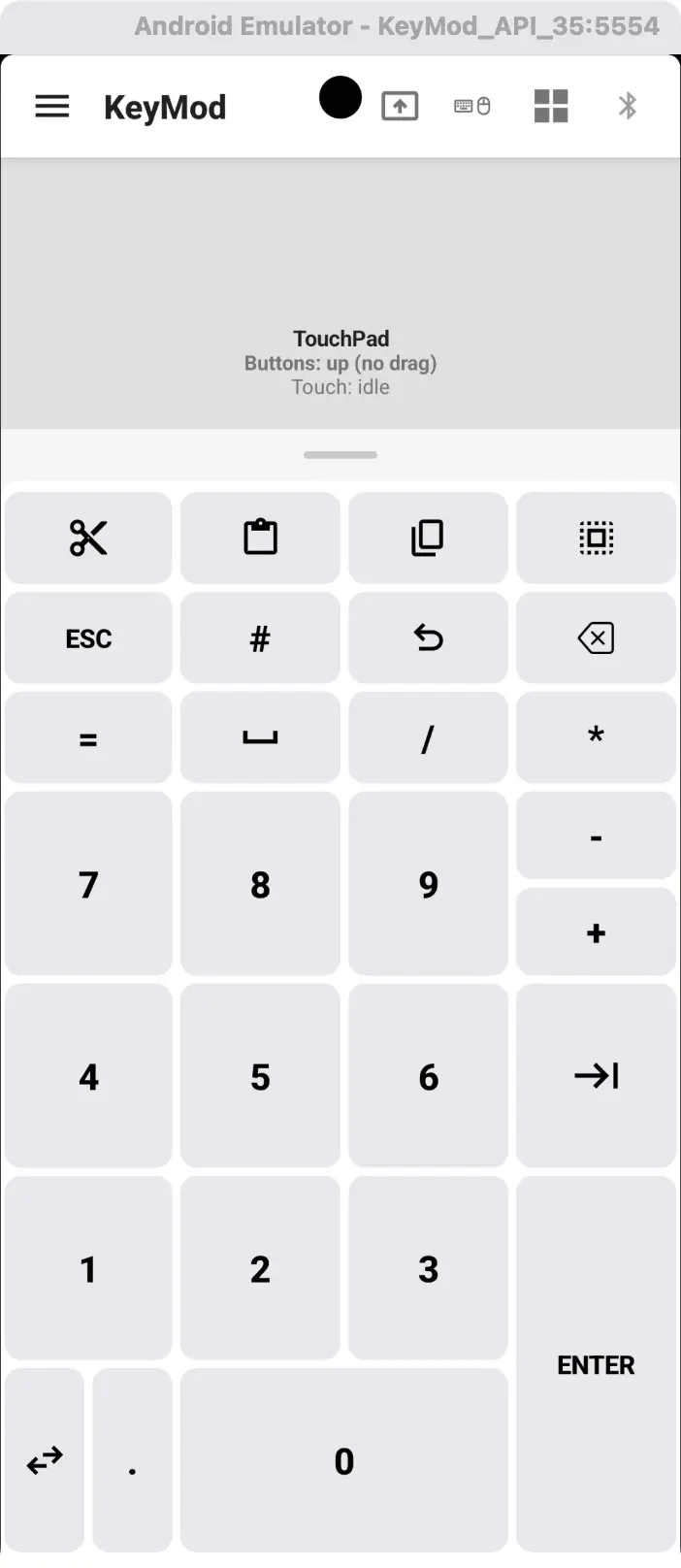
세로 — touchpad 빠른 숫자/기호 입력을 위해 오른쪽에 키패드 그리드가 있습니다.
텍스트 입력(IME 작성 모드 — Android)
세로 키보드 및 마우스 모드에서는 IME 캡처 모드로 전환할 수 있습니다. 이 모드는 키보드 아래에 있는 텍스트 편집기로, HID 키 입력으로 대상 컴퓨터에 보내기 전에 긴 텍스트를 작성하는 곳입니다.
- 수정자 행에서 키보드/IME 토글 아이콘을 탭하여 직접 키 전송과 텍스트 작성 모드 사이를 전환합니다.
- 작성 모드에서는 복사, 붙여넣기, 지우기, 실행 취소 및 보내기를 위한 도구 모음이 있는 텍스트 편집기를 사용할 수 있습니다.
- 화살표 아이콘으로 작성 영역 축소/확장
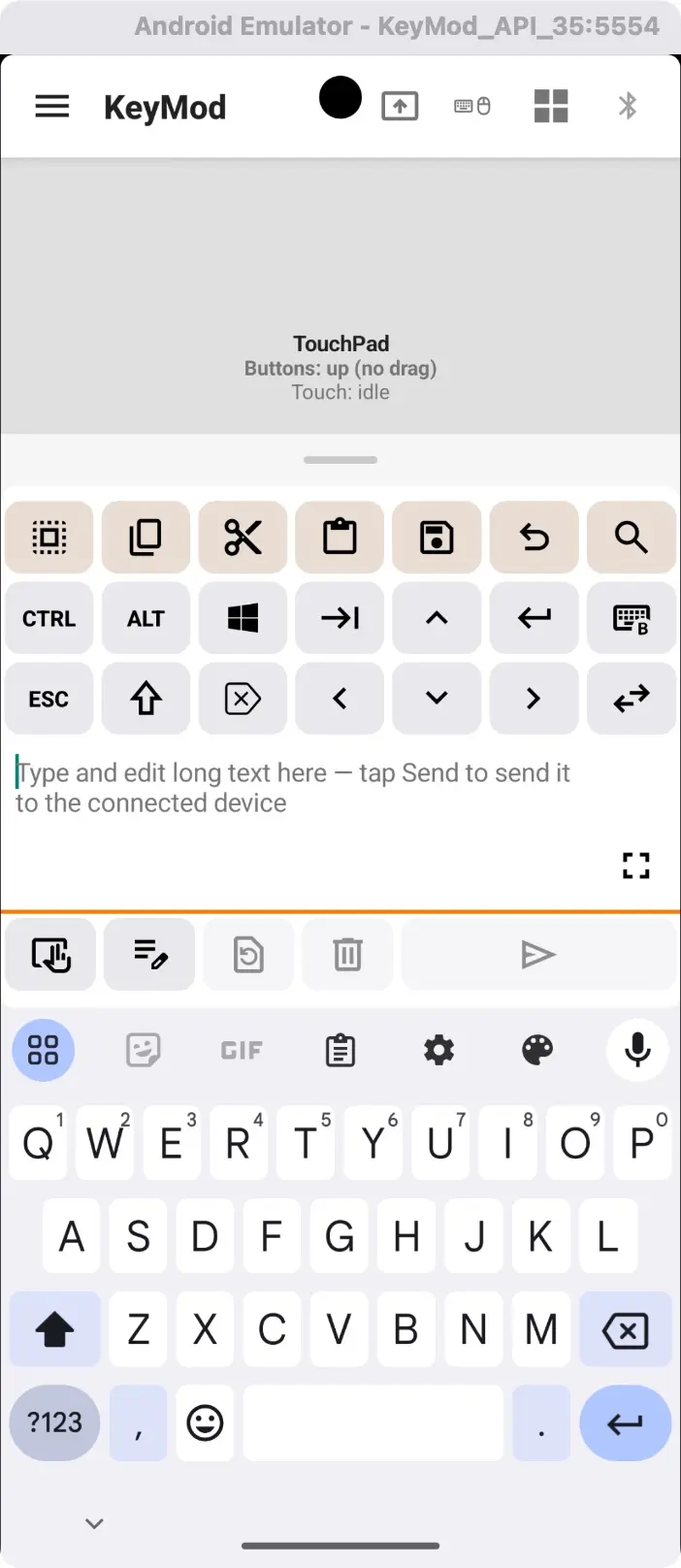
IME 작성 모드 — 긴 텍스트를 입력하거나 붙여넣은 다음 보내기를 탭하면 HID 키 입력으로 대상에 전달됩니다.
대상 OS
대상 컴퓨터의 주요 규칙과 일치하도록 대상 OS를 설정합니다. 이는 단축키 레이블, 유니코드 입력 방법 및 수정자 키 매핑에 영향을 미칩니다. 헤더 표시줄에서 OS 아이콘을 탭하여 변경하세요.
바로가기 스트립(Android, 가로)
가로 분할 모드에서는 스크롤 가능한 단축키 스트립이 두 키보드 반쪽 위에 나타나 일반적인 단축키(복사, 붙여넣기, 잘라내기, 저장, 실행 취소, 모두 선택)에 빠르게 액세스할 수 있습니다.
다음 단계
- Target-Specific Keyboard → — 키보드 레이아웃 및 대상 OS 매핑
- Troubleshooting → — 일반적인 문제 및 해결 방법