

1. Getting Started
Install KeyCmd, connect to your KeyMod hardware, and send your first keystroke in under 5 minutes.
What You Need
- Openterface KeyMod hardware — powered on and within range
- Phone or tablet — Android with KeyCmd installed
- USB cable (for initial setup) — USB-C to connect your phone to the KeyMod device
- Bluetooth (optional) — for wireless connection after initial setup
Step 1: Install KeyCmd
Android:
- Open your phone's browser and download the KeyCmd beta APK (v0.19)
- Tap the downloaded file to install
- If Android asks, allow "Install unknown apps" for your browser
You can also get the latest build from the App page.
Note: KeyCmd source code is not yet public. We plan to open-source it after a successful crowdfunding campaign.
Step 2: Connect to Your KeyMod Device
KeyCmd connects to the Openterface KeyMod hardware in two ways:
USB Connection (recommended for first-time setup)
- Plug your phone into the KeyMod device using a USB-C cable
- Open KeyCmd
- Tap the connection icon (top-right corner of the main screen)
- Tap "USB Connection"
- Accept the USB permission prompt when prompted
- You should see a green "Connected" status indicator
Bluetooth Connection (wireless)
- Make sure Bluetooth is enabled on your phone
- Open KeyCmd and tap the connection icon
- Tap "Bluetooth Connection"
- Wait for your KeyMod device to appear in the scan list
- Tap it to pair
- You should see a green "Connected" status indicator
Tip: Enable "Auto-connect on startup" in the connection dialog so KeyCmd reconnects automatically every time you open it. The app remembers your last connection type (USB or BLE).
Step 3: Pick Your Mode — Welcome & Guide
After launching, you'll see the Welcome & Guide screen with mode cards:
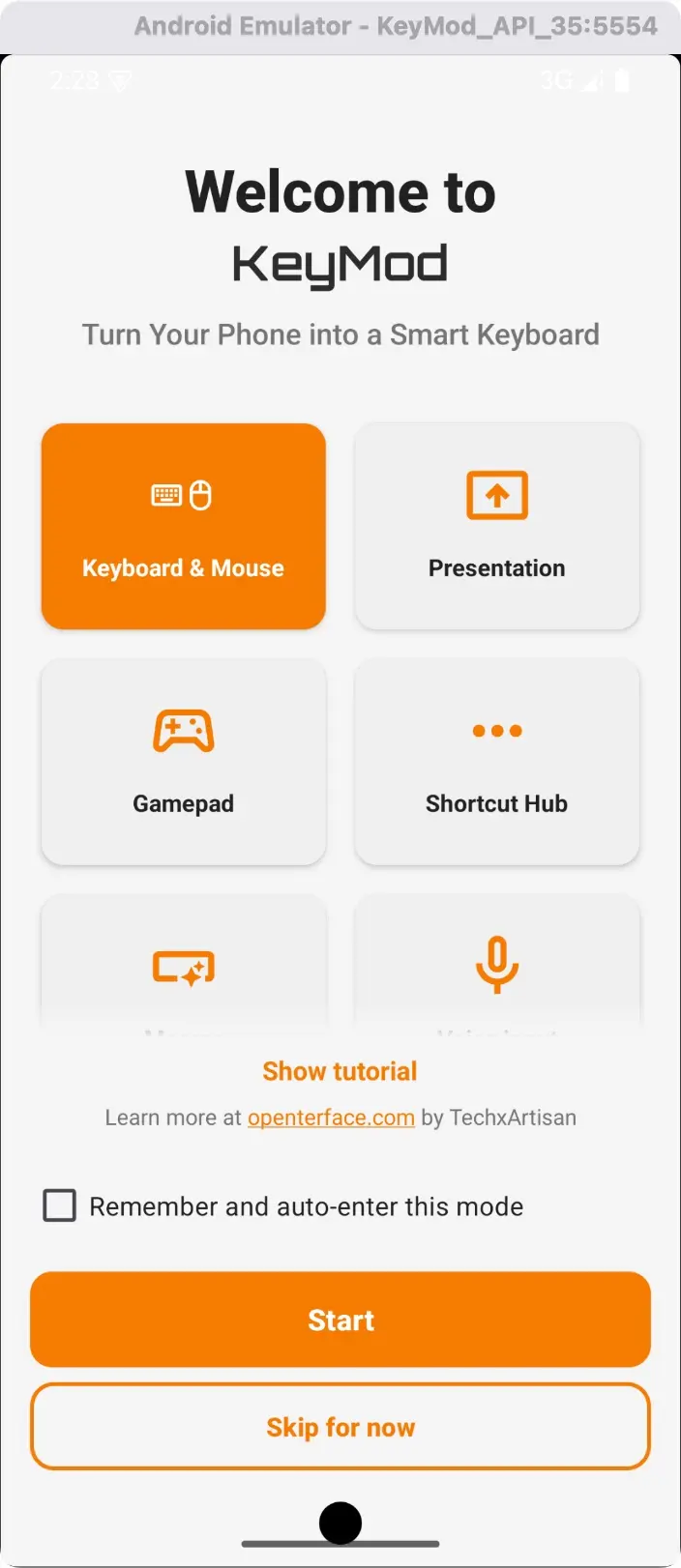
Welcome & Guide — tap any mode card to enter that mode.
Use the side menu (hamburger icon, top-left) to switch modes at any time:
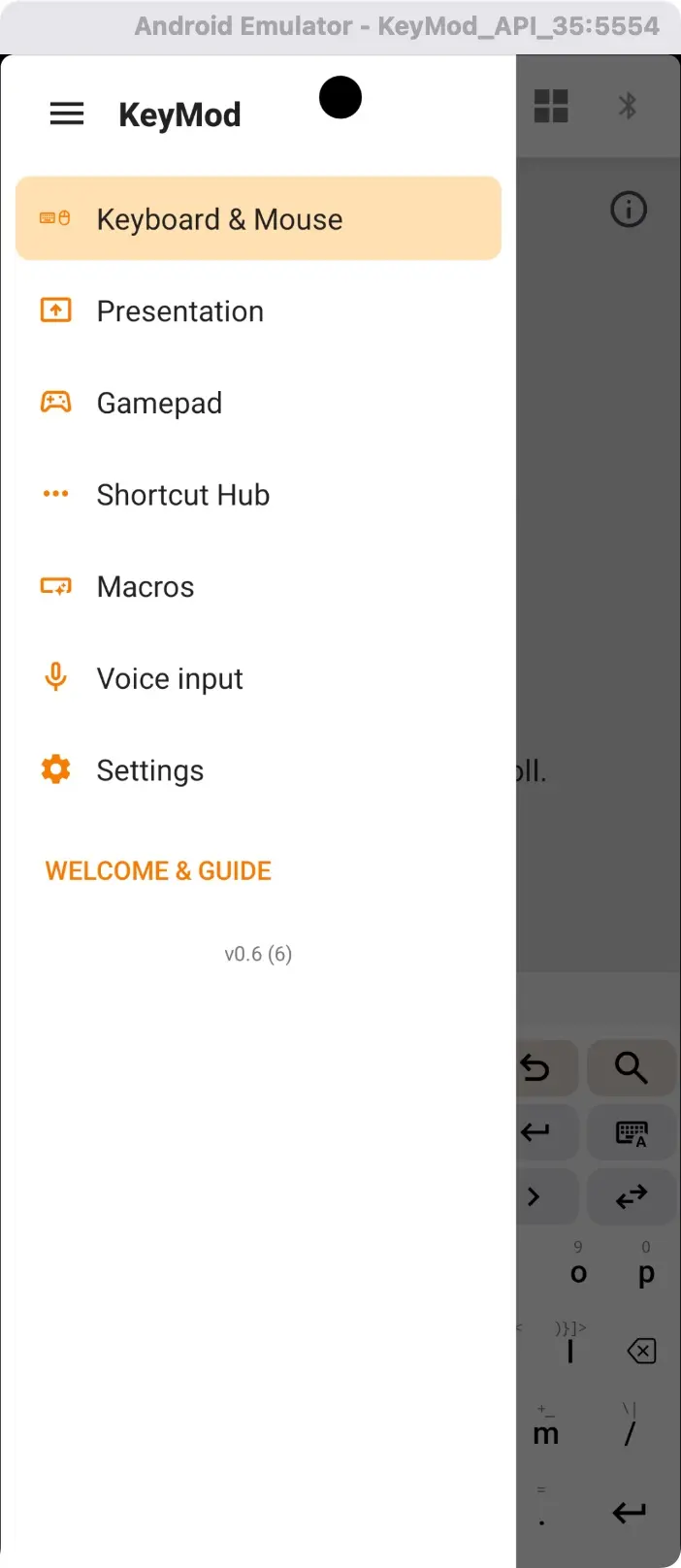
Navigation drawer — switch modes, access macros, voice, and settings.
"Remember my choice" — check this box to skip the Welcome screen on future launches and go directly to your last-used mode.
"Skip" button — bypass the Welcome screen and enter your previously-used mode immediately.
Step 4: Send Your First Keystroke
- Select Keyboard & Mouse mode
- Tap any key on the on-screen keyboard
- The corresponding keystroke is sent to the target computer
That's it! You're now controlling your target computer remotely.
Connection State Indicators
| Indicator | Meaning |
|---|---|
| Green (connected icon) | Active connection, ready to send input |
| Amber/Blue (connecting icon) | Connection in progress |
| Gray (disconnected icon) | No active connection |
| Signal bars | BLE signal strength or USB active status |
Next Steps
- Keyboard & Mouse → — Typing, modifiers, touchpad, and text input